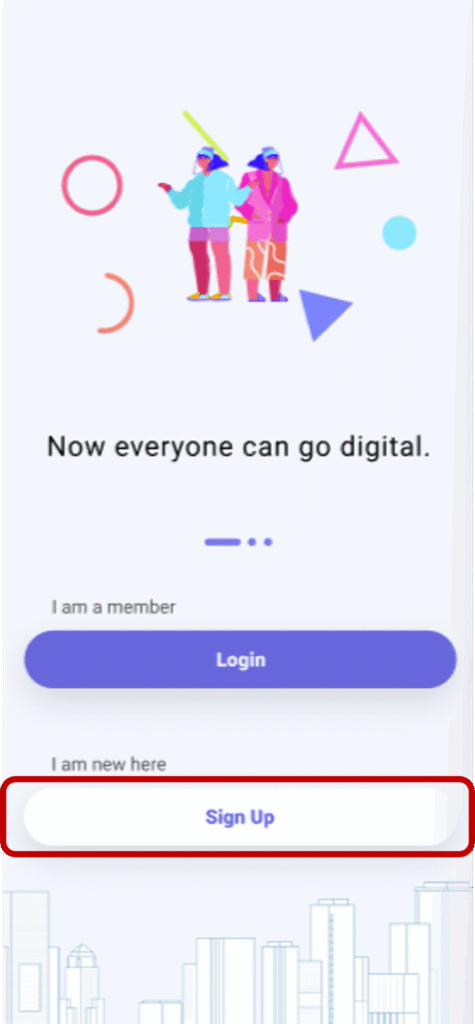
- From the login screen, tap Sign Up to proceed to the signup page.
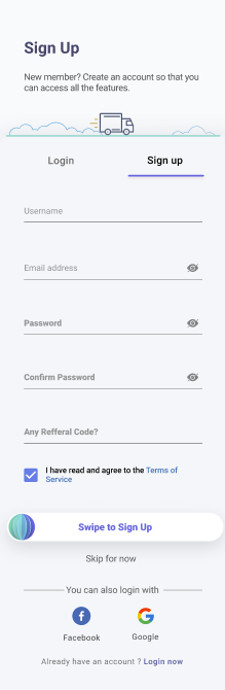
- Fill in all required fields with the necessary information, then swipe on the Sign Uptoggle to continue.
- Username: Must meet the required length.
- Email Address: Must be valid.
- Password: Must meet the required length and security criteria.
- Referral Code: Enter if applicable.
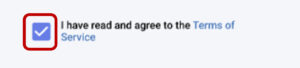
- Read and check the Terms of Servicebox to proceed.
- Check your email (including spam folder) for a verification code.
- Enter the code in the Verification Codefield and tap Verify to confirm your email.
- Alternatively, you can sign up using Facebook or Google:
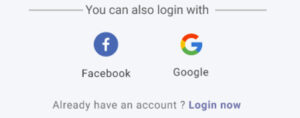
- Facebook: Tap the Facebookicon and follow the login process.
- Google: Tap the Googleicon and select the email linked to your mobile device.
- Once verified, tap Nextto choose your preferred language.
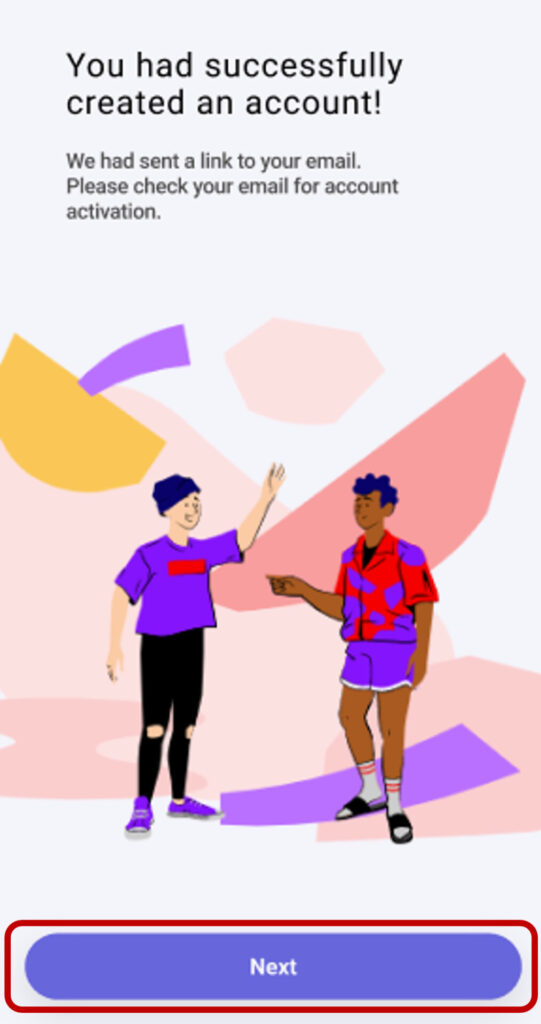
- On the Language Selectionscreen, tap the drop-down menu to select your preferred language. This can be changed later in Settings.
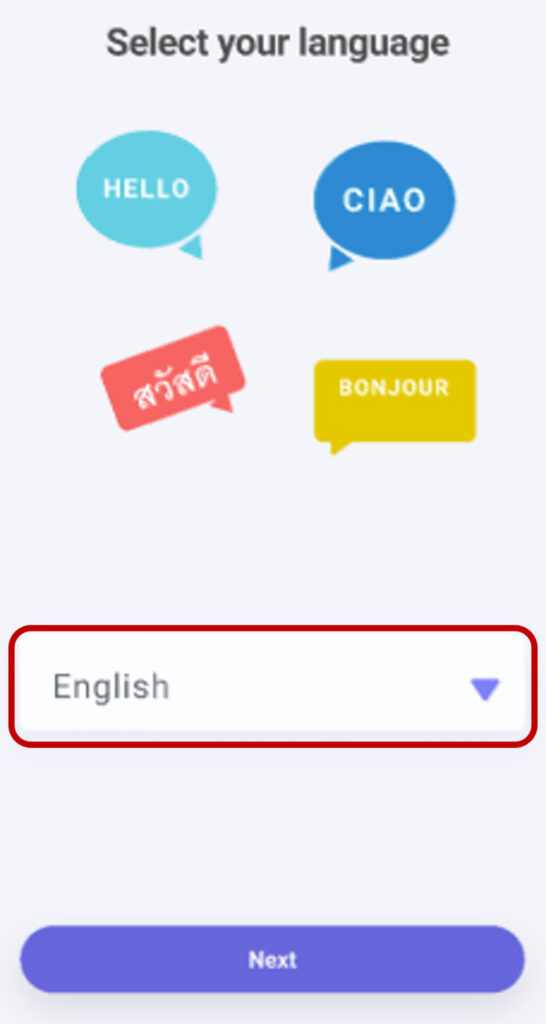
- On the Categoriespage, select your favourite food categories. You can choose more than one, and this can be updated later in Settings. Tap Next to proceed.
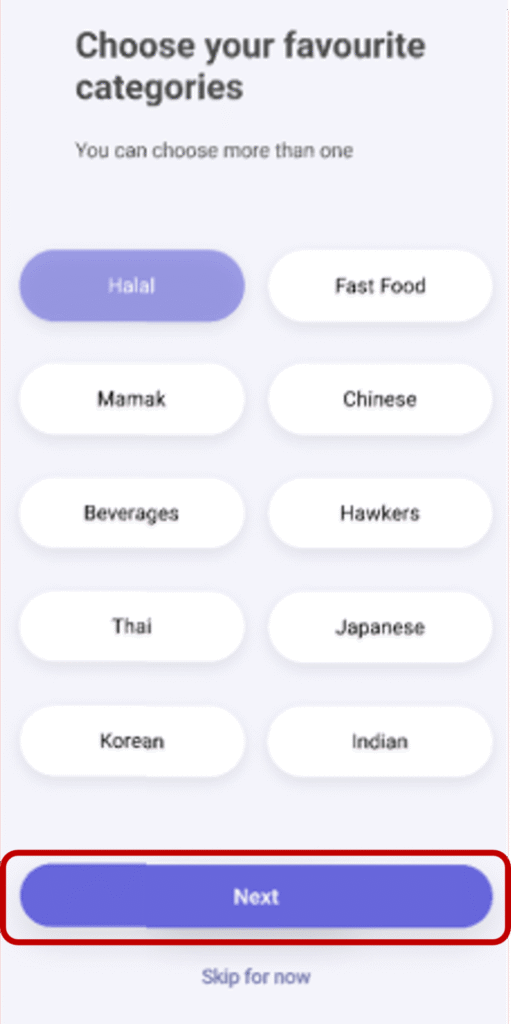
- Once completed, you will be redirected to the Home Screen. Congratulations! You have successfully signed up for Openkom.
- Navigate between the Homeand Profile screens by tapping the icons on the bottom navigation bar.
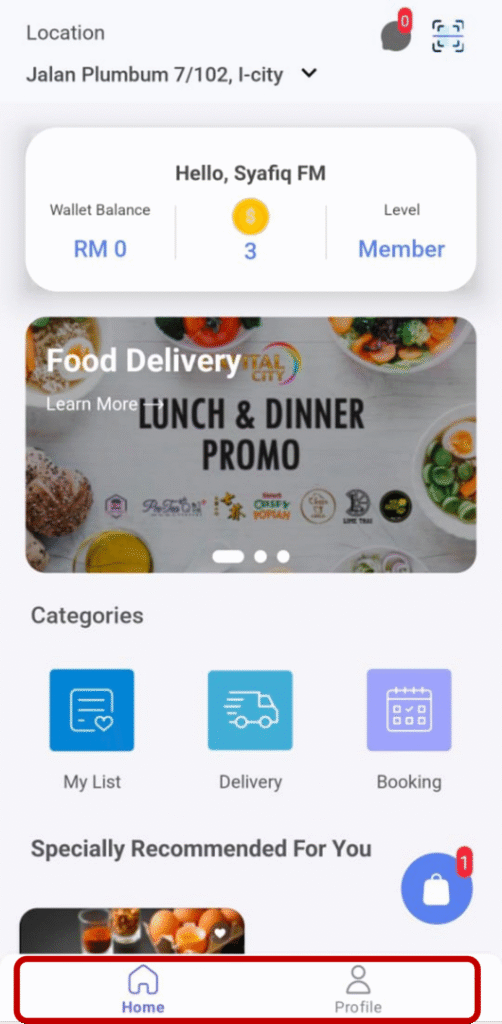
- Browse through the available open stores to explore food options.
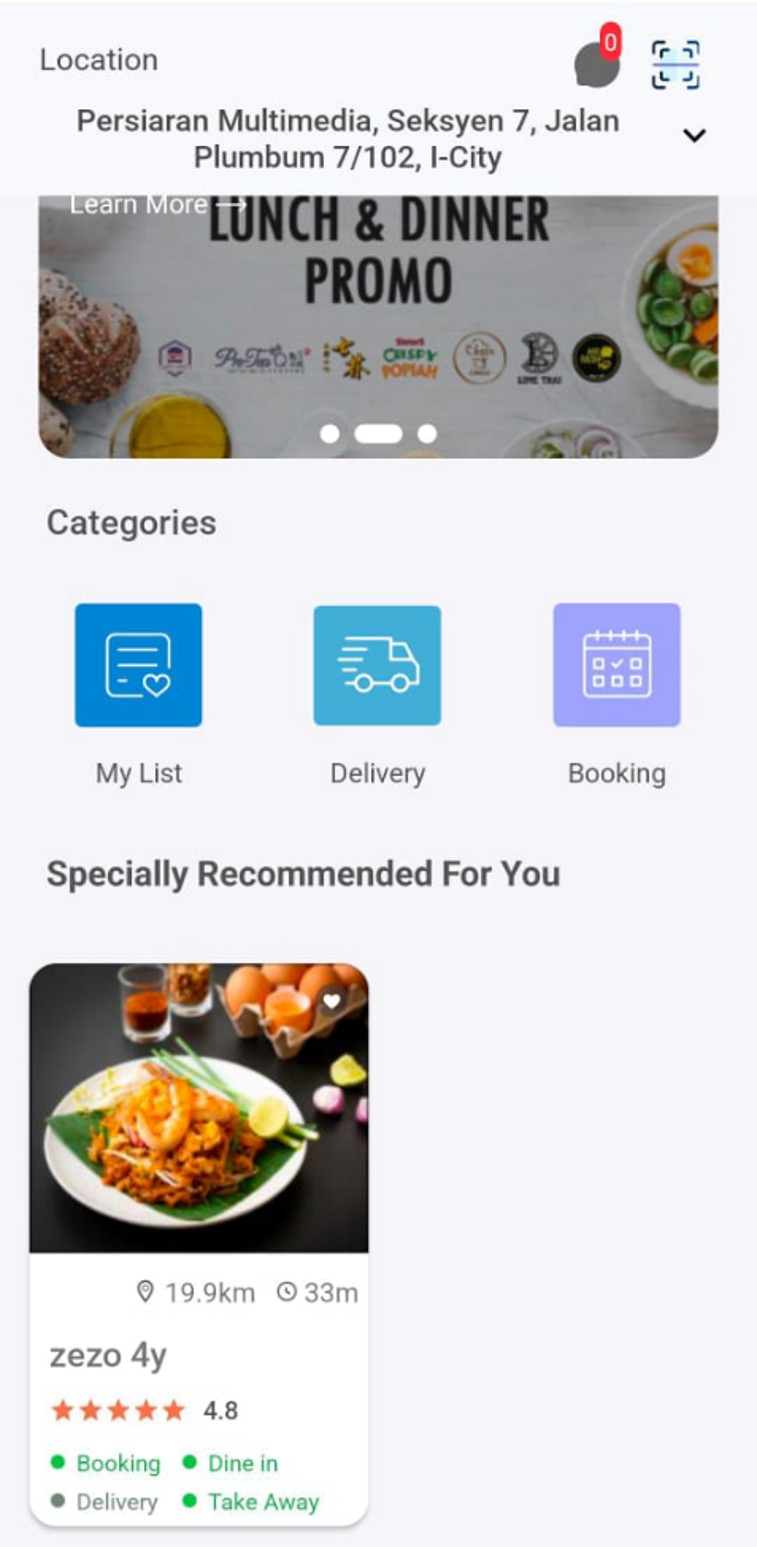
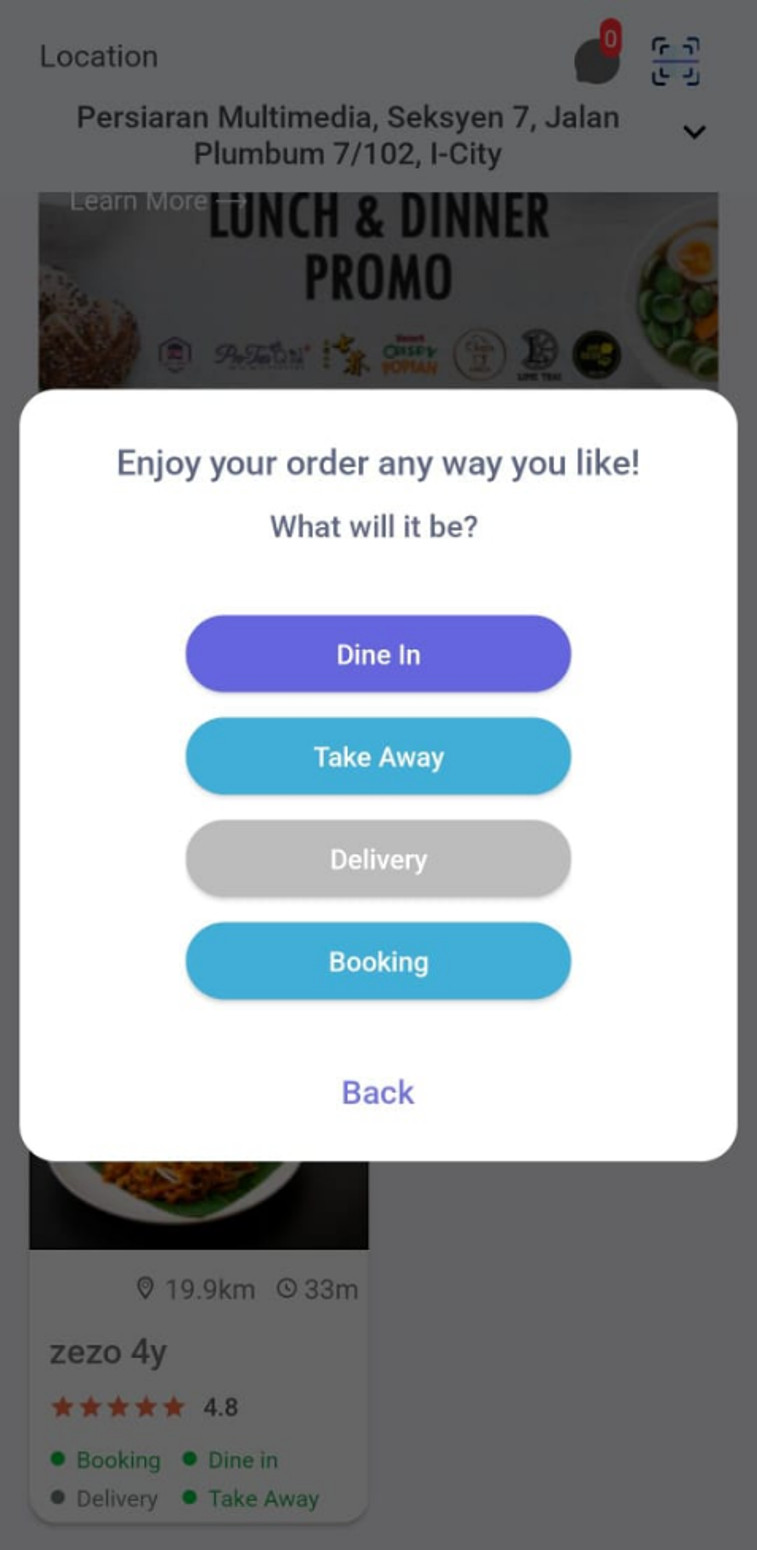
- Choose your preferred service: Dine-In, Takeaway, Delivery, or Booking.
- Select your desired meals and add them to your cart.
- Once you’ve finalized your selection, tap Place Orderto proceed.

- Choose your preferred payment method: Cash, FPX, or Card, and follow the prompts to complete your payment.

- Tap the Notificationicon in the top right corner of the home screen to view notifications.
- To access your messages, tap the Messageicon within the notifications screen.
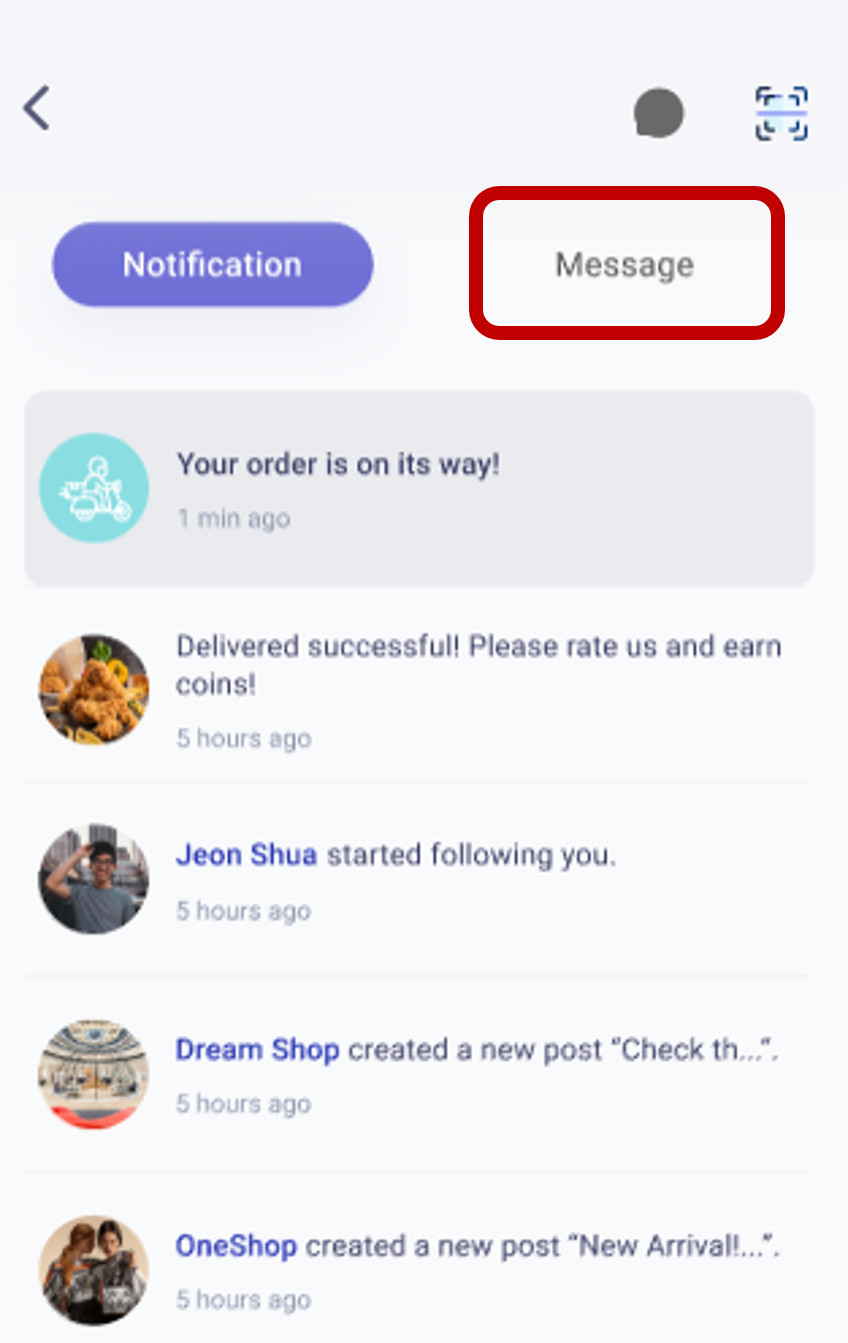
- In the Messages screen, you can chat with merchants or vendors.
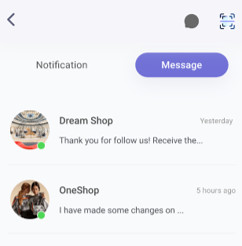
- To start a new conversation, tap the New Chaticon in the bottom right corner.
- Return to the home screen by tapping the Back button in the top left corner.

- Tap the Scan icon in the top right corner of the home screen to scan a restaurant menu or make a payment using a QR code.
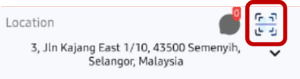
- To change your delivery location, tap the Locationicon on the home screen. This will redirect you to the maps screen.

- On the Maps screen, tap the Currentbutton to set your location to your current position.
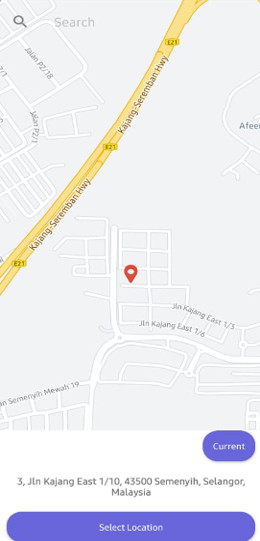
- For a more precise location, enter your address in the search bar.

- Tap the My Listicon in the categories tab on the home screen to view your most recent and favorite restaurants.

- Tap the Delivery icon in the categories tab on the home screen to view restaurants offering delivery services.

- Select your preferred food category from the categories section on the delivery screen.
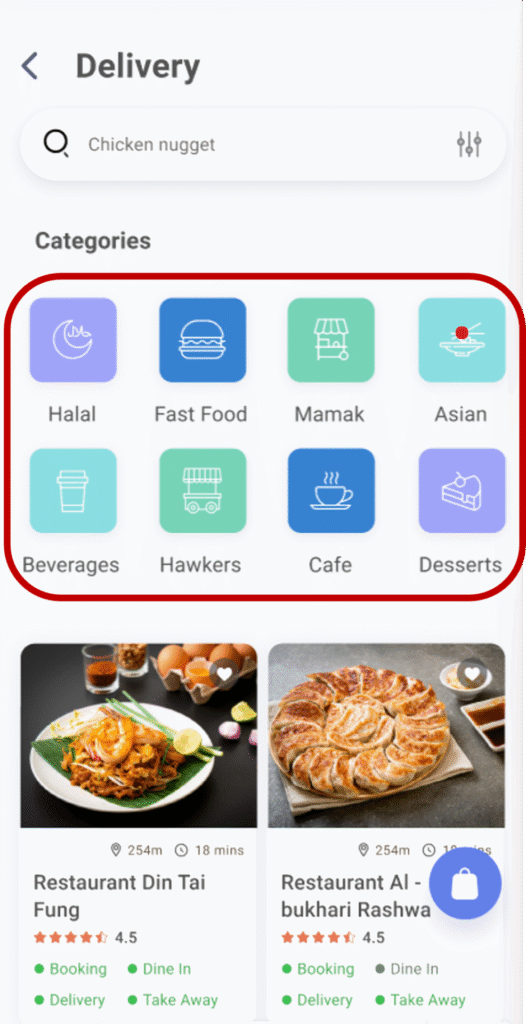
- Search for specific food items by typing in the search bar.

- Tap on a restaurant to view its menu.

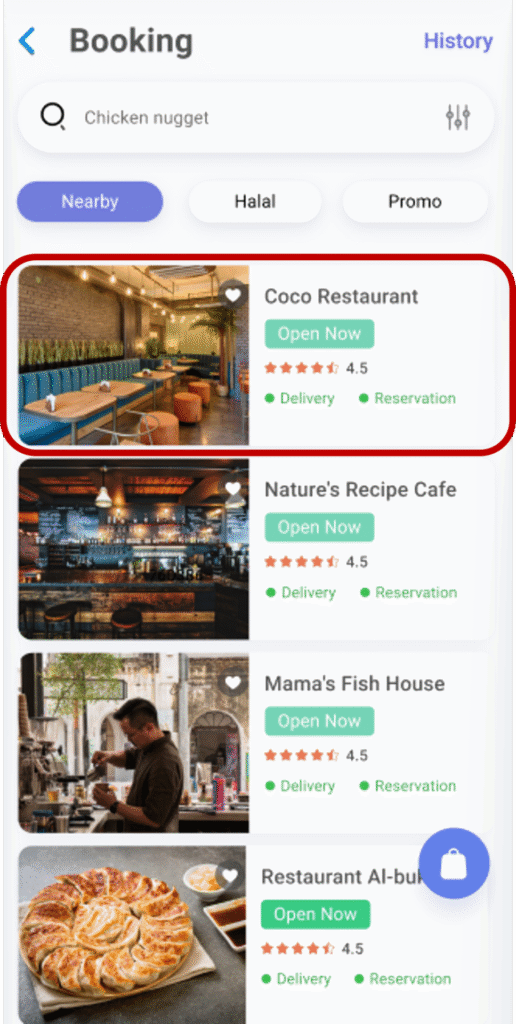
- Tap the Booking icon in the categories tab on the home screen to make a restaurant reservation.

- Search for a specific restaurant by typing its name in the search bar.

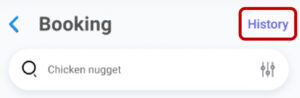
- View past booking history by tapping the History
- Select your preferred restaurant to proceed with the booking.
- On the Table Booking page, fill in the required details and tap Confirm to confirm your booking:
- Select the number of guests
- Choose a date
- Choose a time slot
- Select indoor or outdoor dining
- Choose smoking or non-smoking zone
- Enter any remarks for the restaurant
- Review your reservation before proceeding. If needed, tap Editto make changes.

- Download your booking details by tapping Download Slip on the booking details screen.
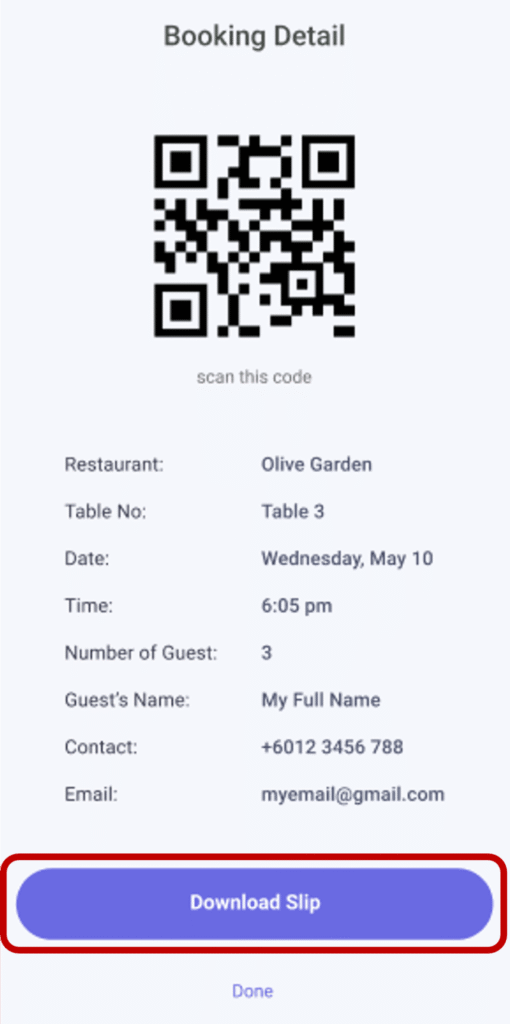
- Tap the Edit icon on the profile screen to update your personal information.

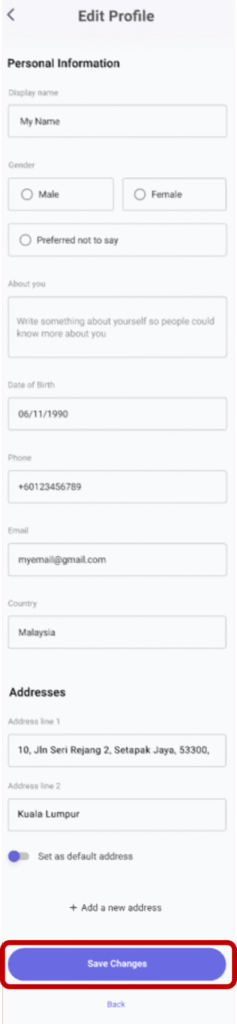
- On the Edit Profile screen, enter the required details and tap Save Changes to confirm.
- Display Name – This will be shown on your profile.
- Gender – Select your gender.
- About Me – Enter a short bio (displayed on your profile).
- Date of Birth – Must be in DD/MM/YYYY format.
- Phone Number – Enter a valid contact number.
- Country – Select your country.
- Address – Enter your delivery address.
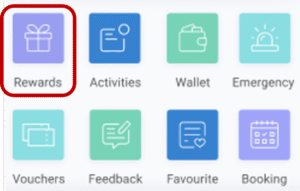
- Tap the Rewards icon on the profile screen to view your rewards.
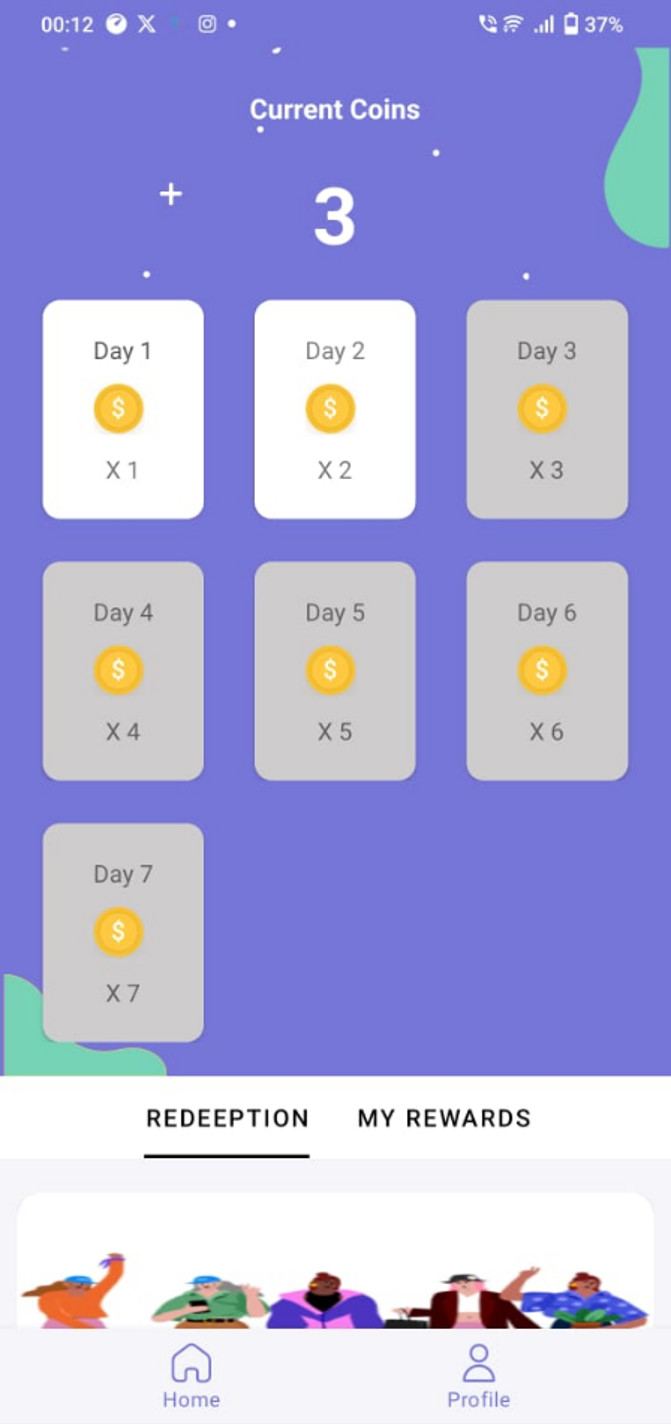
- Check in daily to earn coins, which can be redeemed for rewards.
- Tap the Activities icon to view your recent activity history.

- Tap the Wallet icon to access and manage your wallet balance.

- Tap the Emergency icon to view emergency contact details.

- Add a new emergency contact by tapping the Add a new contact button and entering the required details.


- Tap the Vouchers icon to view available vouchers.

- Tap the Feedback icon to submit feedback or a complaint.

- Tap the Favourites icon to view your favorite restaurants and bookings.

- Tap the Booking icon to view or manage your reservations.